As someone who is both obsessed with automation and works on multiple machines simultaneously, it was only a matter of time before I attempted to automate my entire setup to ensure a consistent and seamless transition between devices.
Now, I’m at the point where I can open a new Mac, set up access to GitHub, and just run the following command in the terminal:
$GITHUB_USERNAME=almaz5200
sh -c "$(curl -fsLS get.chezmoi.io)" -- init --apply git@github.com:$GITHUB_USERNAME/dotfiles.git
That’s all it takes to install everything tools I use in my day-to-day work, including repositories, Xcode, iOS Simulators, SSH keys, NeoVim configuration, and more!
So, let’s get into it!
Chezmoi
The main driver of my setup is Chezmoi, an excellent tool for managing dotfiles. It provides you with many great features, main of which for me are run_onchange and run_once files. Those are scripts that can be written in any language you’d like (or even be executables) that will automatically run either when they change, or on first setup as the name suggests. It has a lot of great customisation options, but we won’t get into that right now. See Chezmoi’s great official documentation for more info.
Homebrew
Everything starts off with Homebrew installation. Here’s contents of a script run by a run_once_asetup.sh file.
#!/bin/zsh

export PATH=$PATH:/opt/homebrew/bin

ensure_installation() {
  tool_name=$1
  installation_command=$2

  if test ! $(which $tool_name); then
    echo "Installing $tool_name..."
    echo "Running: $installation_command"
    eval $installation_command
  fi
}

# Check for Homebrew
if test ! $(which brew); then
	echo "Installing homebrew..."
	/bin/bash -c "$(curl -fsSL https://raw.githubusercontent.com/Homebrew/install/master/install.sh)"
fi

ensure_installation "ansible" 'brew install ansible'
ensure_installation "fish" 'brew install fish'
# ...
ensure_installation "cargo" "curl --proto '=https' --tlsv1.2 -sSf https://sh.rustup.rs | sh"
# ...
As you can see, with test ! $(which brew); we check if Homebrew is already installed in our system, and install it if not.
This is the entry point to the whole process since we will need Homebrew a lot further down the road.
I also install fish right away since a lot of the scripts run in fish shell rather than in zsh.
Then, there is run_onchange_after_homebrew.fish.tmpl file.
#!/opt/homebrew/bin/fish

function ensure_brew
    set action $argv[1]
    set package $argv[2]
    # check if package variable is empty
    if test -z "$package"
      set package $action
    end

    if not type --quiet $action
      echo "🚨 $package is not installed"
      brew install $package
    else
      echo "✅ $package is already installed!"
    end
end

ensure_brew xcode-build-server
ensure_brew xcbeautify
ensure_brew kubectl
ensure_brew pass
ensure_brew task
ensure_brew tasksh
ensure_brew fastlane
ensure_brew lazygit
ensure_brew psql postgresql@14
ensure_brew wakatime-cli
ensure_brew helm
ensure_brew k9s
ensure_brew chezmoi
ensure_brew mise
ensure_brew gsed
ensure_brew ag the_silver_searcher
ensure_brew gh
ensure_brew tmux
ensure_brew starship
ensure_brew node
ensure_brew jq
ensure_brew zoxide
ensure_brew bw bitwarden-cli
ensure_brew fzf
ensure_brew rg ripgrep
ensure_brew hygen
ensure_brew nu nushell
ensure_brew hugo
ensure_brew ncdu
ensure_brew dust
ensure_brew zellij
ensure_brew ninja
ensure_brew cmake
ensure_brew gettext
ensure_brew curl
It simply checks for every tool if it’s already in the system, and installs it of not. This file is ran automatically every time it changes, providing me with semi-automatic synchronisation between my machines. More on that later
Xcode
For Xcode we install Xcodes CLI, which is originally made to manage multiple Xcode versions on a single machine, but can also be used to just install Xcode via shell.
# ...

ensure_installation() {
  tool_name=$1
  installation_command=$2

  if test ! $(which $tool_name); then
    echo "Installing $tool_name..."
    echo "Running: $installation_command"
    eval $installation_command
  fi
}
#...
ensure_installation "xcodes" 'brew install xcodesorg/made/xcodes'
ensure_installation "aria2c" 'brew install aria2'
#...

export XCODE_VERSION=15.3
export IOS_VERSION=17.4

xcodes install $XCODE_VERSION
xcodes select $XCODE_VERSION

if [ -z "$(xcodes runtimes | grep "iOS $IOS_VERSION (Installed)")" ]; then
  xcodes runtimes install "iOS $IOS_VERSION"
fi
This is part of the same script that installs Homebrew. As you can see we first install and select the specified Xcode version (handy for updates as well), and then download runtime for required iOS version, since Xcode now comes without runtimes preloaded.
More on iOS simulators in a Fish Shell section.
Ansible
Ansible initially powered my automation almost fully, however I moved away from it in some of the applications due to it being easier to automate with just shell scripts for me. Still, it is an integral part of my setup, so let’s take a look.
---
- hosts: localhost
  gather_facts: True
  tasks:
    - name: Include macOS playbook
      include_tasks: macos.yaml
      when: ansible_os_family == "Darwin"

    - name: Include Debian playbook
      include_tasks: debian.yaml
      when: ansible_os_family == "Debian"
This is main.yaml playbook, is just selects the playbook depending on a OS that it’s run in. Note that even though throughout my setup you can see some optimisations for future Debian setup, currently it is not finished. However I plan to work with it in a near future.
Let’s look at macos.yaml
---
- name: Install NeoVim via Homebrew
  community.general.homebrew:
    name: neovim
    state: present

- name: Git Email
  git_config:
    name: user.email
    scope: global
    value: almaz5200@gmail.com

- name: Git name
  git_config:
    name: user.name
    scope: global
    value: Artem Trubacheev

- name: Git merge strat
  git_config:
    name: pull.rebase
    scope: global
    value: true

- name: Install tmuxifier
  ansible.builtin.git:
    repo: https://github.com/jimeh/tmuxifier.git
    dest: ~/.tmuxifier/
    force: true

- name: Tap brew repos
  community.general.homebrew_tap:
    name: "{{ item }}"
  loop:
    - jondot/tap

- name: Install packages
  community.general.homebrew:
    name: "{{ item }}"
    state: present
  loop:
    - homebrew/cask/openvpn-connect
    - homebrew/cask/kitty
    - homebrew/cask/emacs

- name: Get tpm for tmux
  ansible.builtin.git:
    repo: https://github.com/tmux-plugins/tpm
    dest: ~/.tmux/plugins/tpm

- name: Set indended shell
  set_fact:
    intended_shell: "/opt/homebrew/bin/fish"

- name: Get current system user
  command: whoami
  register: untrimmed_user
  changed_when: False

- name: Trim the username
  set_fact:
    system_user: "{{ untrimmed_user.stdout | trim }}"

- name: Get current shell of the user
  shell: "dscl . -read /Users/{{ system_user }} UserShell | cut -d ' ' -f 2"
  register: current_shell
  changed_when: False

- name: Set shell to {{ intended_shell }} if not already
  command: "sudo chsh -s {{ intended_shell }} {{ system_user }}"
  when: current_shell.stdout != intended_shell
That’s quite a handful, huh? Here’s what it does
- Install NeoVim with Homebrew. This should probably be moved to the Homebrew script to other tools.
- Sets up some git global configurations, such as my email and name.
- Installs tmuxifier, an excelent tool to manage tmux session. More on it later
- Taps into Homebrew repository and installs some casks (read: apps). Kitty is the most important here as it’s my terminal emulator of choice
- Installs tpm, which is a plugin manager for tmux
- Sets the default shell to fish if that’s not the case already Previously I also managed repositories and all homebrew installations with fish, but I found that it’s much quicker to write a shell scripts for those task. Ansible runs unfortunately took too long to reasonably use it for my purpose.
Neovim
Neovim configuration is managed by Chezmoi as well, and I use LazyVim as my distro. Other than that, Neovim configuration in general and it’s adaptation for iOS Development specifically is a theme that deserves it’s own post. Hit me at artem@almaz5200.com if that’s something you would like to read! In the meantime, check out an excellent blog post from Wojciech Kulik, who is an author of xcodebuild.nvim plugin that I use for most of iOS development needs :)
Fish shell
Fish shell is a core part of my workflow. It simplifies and streamlines almost everything else I’ve described in this post.
First, there are aliases.
alias vim='nvim'

alias rnvim='/opt/homebrew/bin/nvim'
alias nnvim='/usr/local/bin/nvim'
alias nvim='nnvim'

alias lg='lazygit'
alias ce='chezmoi edit --apply'
alias sourcekit-lsp='xcrun sourcekit-lsp'

alias evenv='source .venv/bin/activate.fish'
alias mvenv='python3.11 -m venv .venv'
alias pifr='pip freeze > requirements.txt'
alias protpy='protoc --python_betterproto_out=. protos/*.proto'
alias cf='find . -type f | wc -l'
alias rld='source ~/.config/fish/config.fish'
alias wakatime='wakatime-cli'
alias sv='git add .;git commit -am "WIP"'
Most of them are pretty self-explanatory, but here’s a few I would like to note
ce– allows me to quickly change any part of my Chezmoi repository whatever I doevenvandmvenv– quickly activate and/or create new python virtual environmentspifr– quickly update requirements.txt file with the latest versionssv– quickly commit everything into a WIP commit, a real game-changer! I wouldn’t be able to count how much times I’ve broken something in an uncommitted changes and spend hours searching for problem, this gives me an option to make “checkpoints” every 15 minutes of work or so
Terminal Prompt
I have a pretty minimal Pure prompt.
 It just shows current directory, time, git branch and a progress towards the end of current 12 weeks period which I use to plan my goals. The image is scaled down width-wise of course, there’s usually much more space for a command than that
Custom commands
I also have .custom_commands file at the root of my repository that is being sourced automatically. Before I highlight some of it’s functions I would like to note that this is my legacy and those functions are best stored at ~/.config/fish/functions/, but I didn’t know any better at the time and didn’t get around to change that for now. Don’t repeat my mistakes!
function pfix
  git add .
  git commit -a -m "fix"
  git push
end
This is another little shortcut that I use when I fix issues with a pull request, when I know that commits are going to be squashed anyway.
function retimeLast
  set -x GIT_COMMITTER_DATE (date)
  git commit --amend --no-edit --date (date)
end
When I do sv a lot as I’ve described earlier I usually squash all of the commits with lazygit after I’m done, but that way the commit time is that of the first sv commit, which is often days before the current date! So for that I made this little function to set last commit’s date to “now”
function envsource
  for line in (cat $argv | grep -v '^#' | grep -v '^\s*$')
    set item (string split -m 1 '=' $line)
    set -gx $item[1] $item[2]
    echo "Exported key $item[1]"
  end
end
Wierdly, fish doesn’t support sourcing regular .env files, so I’ve found this snippet. The author says that they don’t use it anymore and they switched to Taskfile, maybe I will give it a try later as well.
function sync_dotfiles
  # Navigate to the dotfiles directory
  cd ~/.local/share/chezmoi
  chezmoi apply

  # Add any new changes from the dotfiles directory
  git add .

  # Commit the changes - you can customize the commit message as needed
  git commit -m "Update dotfiles"

  # Pull any new changes from the remote repository
  echo "Pulling changes from remote..."
  git pull origin main

  # Push the changes back to the remote repository
  echo "Pushing changes to remote..."
  git push origin main

  # Navigate back to the original directory
  chezmoi apply
  cd -
end

alias syncdot='sync_dotfiles'
This functions is often used to syncronize dotfiles with a remote git repository. I have to use it quite often since I work on two macs and I love them to be synchronised in terms of setup.
It not only synchronises the dotfiles, but also runs changed onchange_ scripts I’ve shown earlier. For example, the one that installs tools using brew, or clones all repositories
I would also like to highlight a get_aasa function.
function get_aasa
    set host $argv[1]
    echo "Checking AASA for $host"
    curl -L https://$host/.well-known/apple-app-site-association | jq
end
It just fetches apple-app-site-association file and puts it into a json parser to conveniently check it’s contents. I believe that is what all my setup is about for me – a ton of subtle features and improvements here and there that make my setup truly mine and turn in into extension of my own hands
iOS Simulators
iOS Simulators creation is also semi-automated with fish functions. Let’s take a look
function ensure_sim
  set ios $argv[1]
  set device $argv[2]
  set name $argv[3]

  set iosformatted (echo $ios | sed 's/\./-/g')

  if test -z $ios
    echo "ios version not provided"
    return
  end

  if test -z $device
    echo "device not provided"
    return
  end

  if test -z $name
    echo "name not provided"
    return
  end

  set sim_exists (xcrun simctl list devices "iOS $ios" | grep $name)

  if test -z "$sim_exists"
    echo "Creating a new simulator with name $name, device $device and iOS $iosformatted"
    xcrun simctl create $name com.apple.CoreSimulator.SimDeviceType.$device com.apple.CoreSimulator.SimRuntime.iOS-$iosformatted
  end
end

function ensure_all_simulators
  set ios $argv[1]

  if test -z $ios
    echo "ios version not provided"
    return
  end

  ensure_sim $ios "iPhone-15-Pro-Max" "Screenshot-island"
  ensure_sim $ios "iPhone-13-Pro-Max" "Screenshot-regular"
  ensure_sim $ios "iPad-Pro-12-9-inch-6th-generation-16GB" "Screenshot-ipad"

  ensure_sim $ios "iPhone-15-Pro-Max" "iPhone 15 Pro Max"
  ensure_sim $ios "iPhone-13-Pro-Max" "iPhone 13 Pro Max"
  ensure_sim $ios "iPad-Pro-12-9-inch-6th-generation-16GB" "iPad Pro (12.9-inch) (6th generation)"

  ensure_sim $ios "iPhone-15-Pro" "Work"
end
ensure_sim
First let’s break down function to create individual simulators.
xcrun command takes an iOS version in a format 17-4, as opposed to 17.1 we are used to. For usage convenience we create a new variable iosformatted with the format converted using sed
Then, with multiple if test -z block we ensure that all the variables are set just to provide a proper feedback if something is wrong
Lastly, before actually creating a simulator we need to make sure that it doesn’t exist already. It will be more apparent as to why would we need that a little later. We achieve that by listing all iOS devices of neccesary version and filtering the name using grep
set sim_exists (xcrun simctl list devices "iOS $ios" | grep $name)
Finally, time to create simulator
xcrun simctl create $name com.apple.CoreSimulator.SimDeviceType.$device com.apple.CoreSimulator.SimRuntime.iOS-$iosformatted
The command is pretty self explanatory and in a formatted form would look something like that
xcrun simctl create Work com.apple.CoreSimulator.SimDeviceType.iPhone-13-Pro-Max com.apple.CoreSimulator.SimRuntime.iOS-17-4
ensure_all_simulators
I don’t really use the ensure_sim command by hand. Instead, I have another helper function, let’s see
function ensure_all_simulators
  set ios $argv[1]

  if test -z $ios
    echo "ios version not provided"
    return
  end

  ensure_sim $ios "iPhone-15-Pro-Max" "Screenshot-island"
  ensure_sim $ios "iPhone-13-Pro-Max" "Screenshot-regular"
  ensure_sim $ios "iPad-Pro-12-9-inch-6th-generation-16GB" "Screenshot-ipad"

  ensure_sim $ios "iPhone-15-Pro-Max" "iPhone 15 Pro Max"
  ensure_sim $ios "iPhone-13-Pro-Max" "iPhone 13 Pro Max"
  ensure_sim $ios "iPad-Pro-12-9-inch-6th-generation-16GB" "iPad Pro (12.9-inch) (6th generation)"

  ensure_sim $ios "iPhone-15-Pro" "Work"
end
It’s even simpler than the last one, It just takes 1 argumens (iOS version) and create all the simulators I need. If I need more, I just change this script to include the new simulator I need and run ensure_all_simulators 17.4 manually.
Private Data
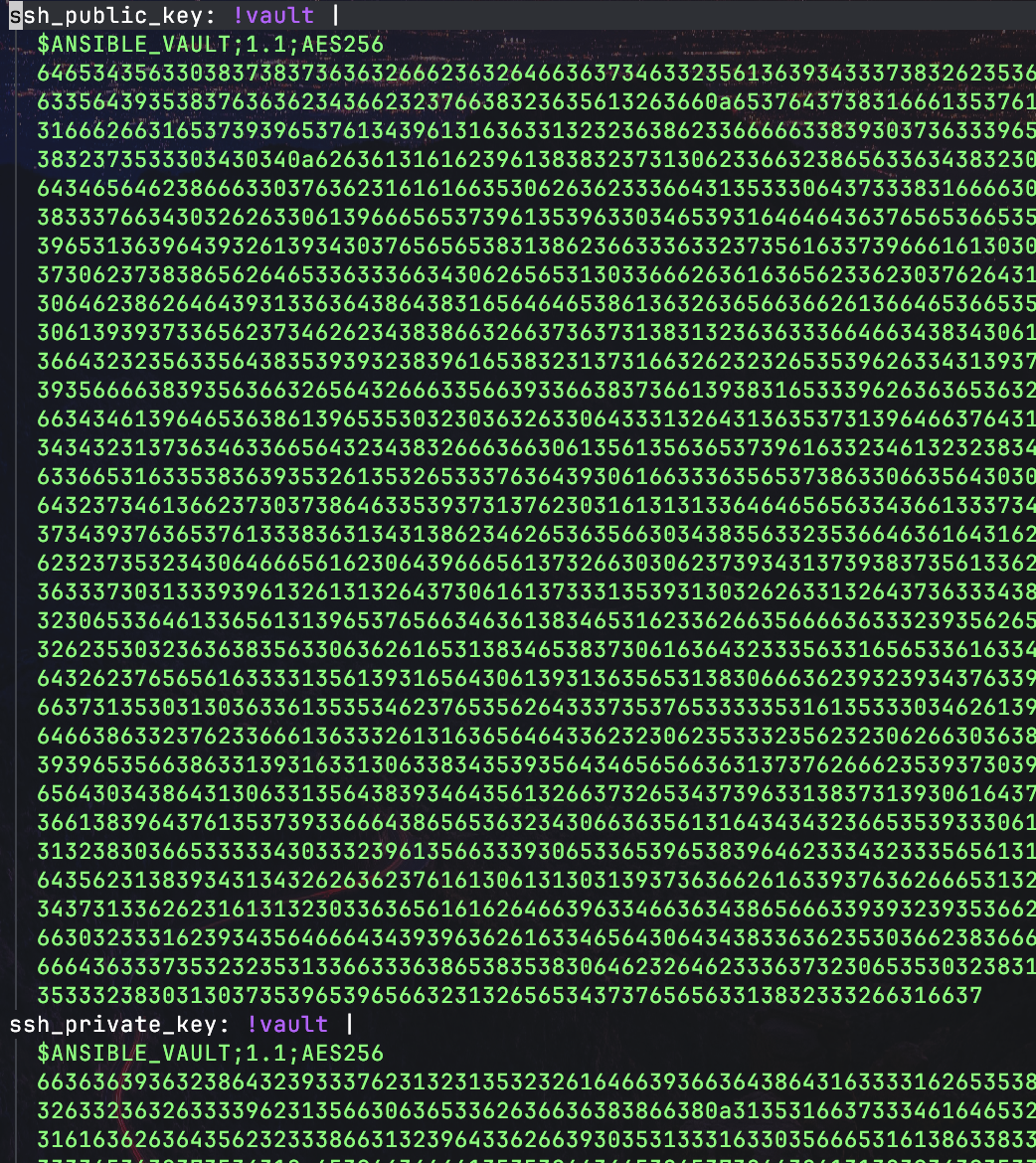
SSH Keys are set up automatically too. This is done using Ansible Vault.
The encrypted keys are stored in playbooks/secrets.yaml and in theory are even safe to store publicly as long as the password is secure.
 To set them up I manually run the
 setup_privates command. Here’s the fish function
function setup_privates
    if [ ! -f ~/playbooks/ansible-password ]
        cd ~/playbooks/
        echo "Enter your ansible vault password"
        read -s password
        echo $password > ansible-password
        chmod 600 ansible-password
        echo "Ansible-password file created"
    end

    cd ~/playbooks/
    ansible-playbook privates.yaml
end
I didn’t put it in the main setup script because sometimes I want to setup my dotfiles on a machine where I don’t really need them or don’t feel comfortable having them there. So I just manually run the command when I need them set up.
Other than ssh keys, privates.yaml playbook also sets up my pass repo and installs gpg keys for it.
Repositories
Currently, I have about 10 repositories that I work with at least semi-frequently. For that reason I automated their cloning to particular folders as well.
#!/bin/zsh

function ensure_repo {
  PT=$1
  URL=$2
  if [ ! -d $PT ]; then
    echo "Cloning $URL to $PT"
    git clone $URL $PT
  else
    echo "Already have $PT"
  fi
}

ensure_repo ~/MyProject/AdminPanel git@github.com:Almaz5200/MyProjectAdminPanel.git
# ...  More repositories in a simmilar fashion

{{ if eq .chezmoi.os "darwin" }}
ensure_repo ~/iosProject git@@github.com:Almaz5200/SomeIosProject.git
{{ end }}
Note that this file is a template, meaning it can leverage Chezmoi’s templating tools. In this case, it allows me to dynamicaly add repositories to my list for macOS only (in this case). Apart from some rare cases, I don’t clone repositories manually, at least if I expect to work on it regularly. Instead, I just add a repository to this list.
Tmux
The last big tool that I use is tmux. Basically any time I open up a terminal I open tmux immediately too, it’s a great tool that gives me an experience similar to tile window management and gives me great session persistency.
set -g @plugin 'tmux-plugins/tpm'
set -g @plugin 'tmux-plugins/tmux-sensible'
set -g @plugin 'https://github.com/christoomey/vim-tmux-navigator'
set -g @plugin 'catppuccin/tmux'
set -g @plugin 'tmux-plugins/tmux-battery'
There is not much unique in my tmux configuration, I use it with tpm, catppuccin theme.
The most notable feature is vim-tmux-navigator plugin which allows me to navigate seamlessly between tmux panes and nvim buffers with <C-i/j/k/l>.
Another great tool that goes with tmux is tmuxifier. It allows you to preset session templates like that:
Window
window_root "~/ios_project/"

# Create new window. If no argument is given, window name will be based on
# layout file name.
new_window "ios-main"

# Split window into panes.
split_v 20

# Run commands.
run_cmd "nvim" 1 # runs in active pane
select_pane 1
# To resore last session with LazyVim
send_keys "s" 1
Session
if initialize_session "iOS"; then
	load_window "ios-main"
	select_window 1
fi

# Finalize session creation and switch/attach to it.
finalize_and_go_to_session
This allows me to run a single tmuxifier s project and have Neovim opened right where I left it with a pane split in the way I like it. And all of that in just seconds!
Misc
This pretty much wraps up most of my setup, although there still more to tell about, like wakatime for time tracking, pass for password and API keys management and more.
If there is anything in particular you would like me to explore or tell about, please let me know at artem@almaz5200.com.
If you would like to explore my dotfiles repository yourself (with SSH keys and repository names excluded), please leave your email below, and the button will take you right to the repository! I promise not to spam you or anything — I just would love to stay in touch with you, since you are clearly interested in the some of the same things as me! I will let you know if I find more great things out there worth sharing :)